
Are you missing notifications or alerts from Schoology? Follow this guide to enable or disable certain kinds of notifications from Schoology.
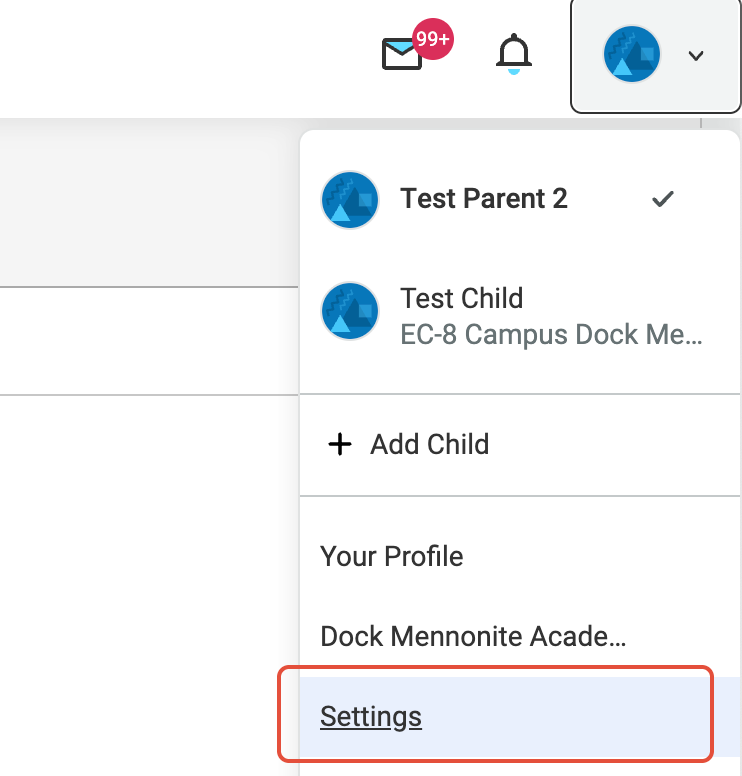
Begin by logging into Schoology, and viewing your account settings by clicking on your name, then on "Settings":
Next, make sure your primary email has the correct address, and click Check Status to make sure there are no issues sending to this address.

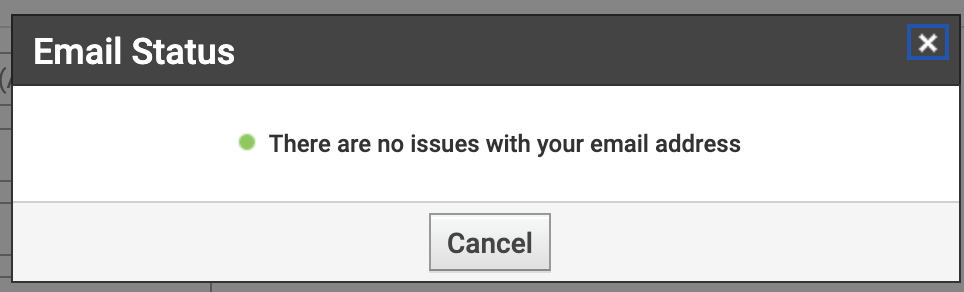
You should see this pop-up if everything is good:
If you see "Resend Verification Email", please confirm your address by checking that box, and clicking Save Changes. You'll receive an email at the address you specified and can confirm your address by clicking a link:

Next, click on the Notifications tab at the top:

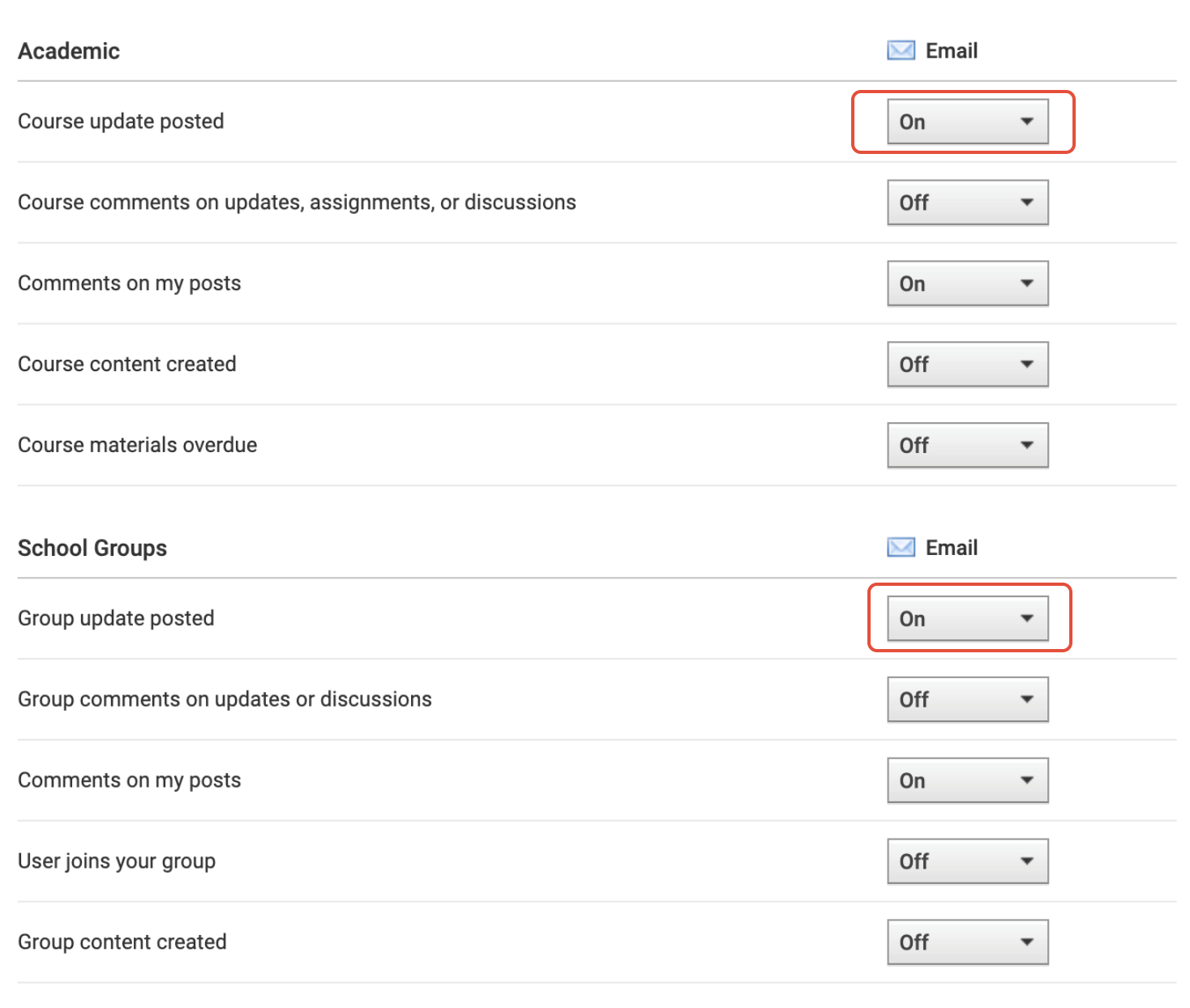
From here, you can turn alerts on or off depending on your preferences. We recommend keeping these notifications on for Courses and for Groups (for example, if your child is in an after-school activity, or a grade-level group).
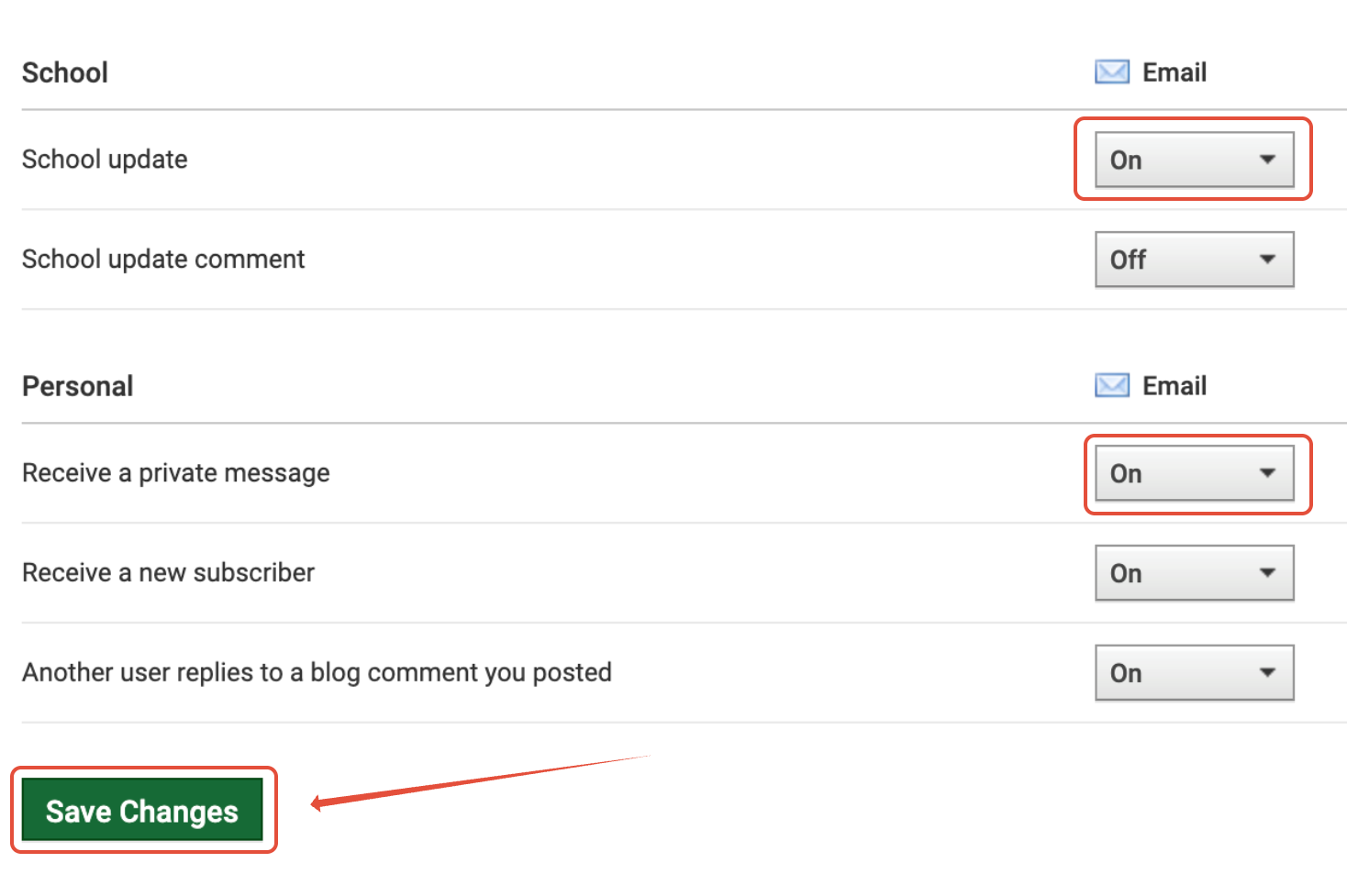
Similarly, you should always have school updates, and message notifications turned on, so a teacher or administrator can send you a message if needed. Make sure to click "Save Changes" when you're done.
Finally, if you've signed in on the app, you can confirm notifications are on, or can remove notifications if you'd like.
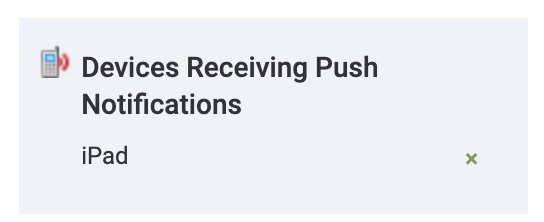
If the app is enabled, you will see an additional column labeled "Mobile" and you can turn off notifications similar to above:

Please note that if you're looking to turn the Daily / Weekly Digest On or Off, please check this guide.